
日本語
AI journaling app for Apple Watch

The day you talked through, written up as tonight's journal.

Record conversations on Apple Watch and transcribe them on your iPhone. AI turns the day's conversations into a journal entry with a cover illustration. What was decided in the meeting, the small talk at lunch, the one thing someone said that made your day. Journaling that keeps going, even when you have no time to write.

Available soon

¥1,800/month · no limit on recording time

Launching in Japan on November 16, 2026. Tax included · auto-renewing · no free trial.

  • Only conversations you're in
  • Audio deleted after 24 hours
  • Records stay on your iPhone
Sample screens. One cover illustration is made per day from that day's journal.
Your day

Wear your Apple Watch. That's all you have to do.

Start Auto record on your Apple Watch, and there's no need to take out your iPhone to record or to set aside time to write your journal.

  1. Start "Auto record" on Apple Watch

    It records only while it hears voices, and stays idle when it's quiet. Pause, or mark an important moment with ★, right from your wrist.

  2. Each conversation becomes text and a summary

    Audio goes to your iPhone and is transcribed on the iPhone. Each conversation gets a title, with decisions and suggested to-dos pulled out.

  3. Your journal for the day is ready

    From the day's conversations, AI writes the entry and its title. Steps, sleep, exercise, weather and photos sit alongside. You choose what time it's written.

Sample journal

A day of conversations becomes a journal.

For lines based on conversations, tap the mark to check the source. It also helps you check the AI's writing for mistakes.

Sample Cover illustration: five colleagues meeting around a table with laptops and coffee, in a room overlooking an autumn city

Thursday, November 5Sunny 64°F

Setting the release date, and homework for next quarter

At the morning team sync we sorted out the last bugs and the order of checks. We release next Wednesday.1

Lunch turned into a long chat about the new bakery by the station. It opens at 8, so I'm going to take the family this weekend.2

In my afternoon 1:1, I was asked to take on new analytics work next quarter. "It's fine to fail — just give it a try" stayed with me.3

We'll check in on the second Wednesday of every month.3

3 conversations 2 hr 2 min 8,214 steps 4 photos
Reflection promptWhat are you most looking forward to trying next quarter?
Conversations that day
1 9:30 AM · 42 minMeeting Weekly team sync

Decided: release next Wednesday. To-do: make the release checklist (Sarah).

2 12:10 PM · 25 minChat The new bakery, over lunch

The new bakery near the station. Planning to go with the family this weekend.

3 4:00 PM · 55 minMeeting 1:1 — next quarter's goals

Decided: meet on the second Wednesday of each month. Still open: which budget covers the training.

Sample data. One journal entry per day, never regenerated.

No extra device to buy.

All you need is the Apple Watch and iPhone you already use. No recorder to hang around your neck, no clip-on device to add.

  • Nothing extra to carryIt records with the Apple Watch you wear every day. No second gadget to carry around or leave behind.
  • Nothing extra to chargeYou charge your Apple Watch and iPhone as usual. No special charger or cable.
  • Supported devicesAn iPhone on iOS 26 or later that supports Apple's on-device transcription, and an Apple Watch on watchOS 11 or later.
Features

A journal — and a record of your work, too.

Sample screens.

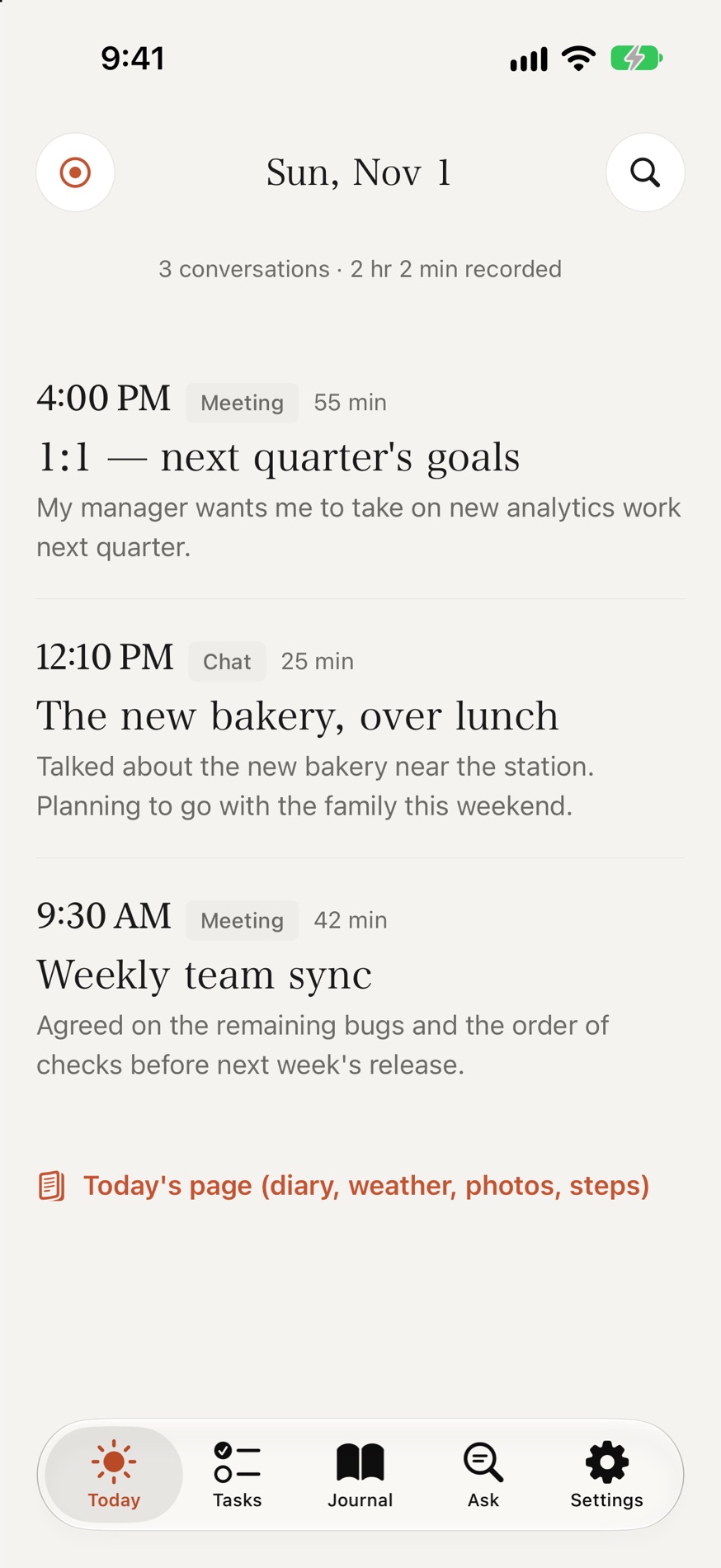
Every conversation summarized, sorted and turned into action

Today lists the day's conversations in time order. Open one to read the key points, what was decided, what's still open, and the original words.

  • Conversations are sorted into meetings, chats, learning and more
  • Name a speaker to see all your conversations with them together
  • Leave background voices out of summaries, speaker by speaker
The Today screen: a 4:00 PM 1:1, a 12:10 PM chat and a 9:30 AM team sync

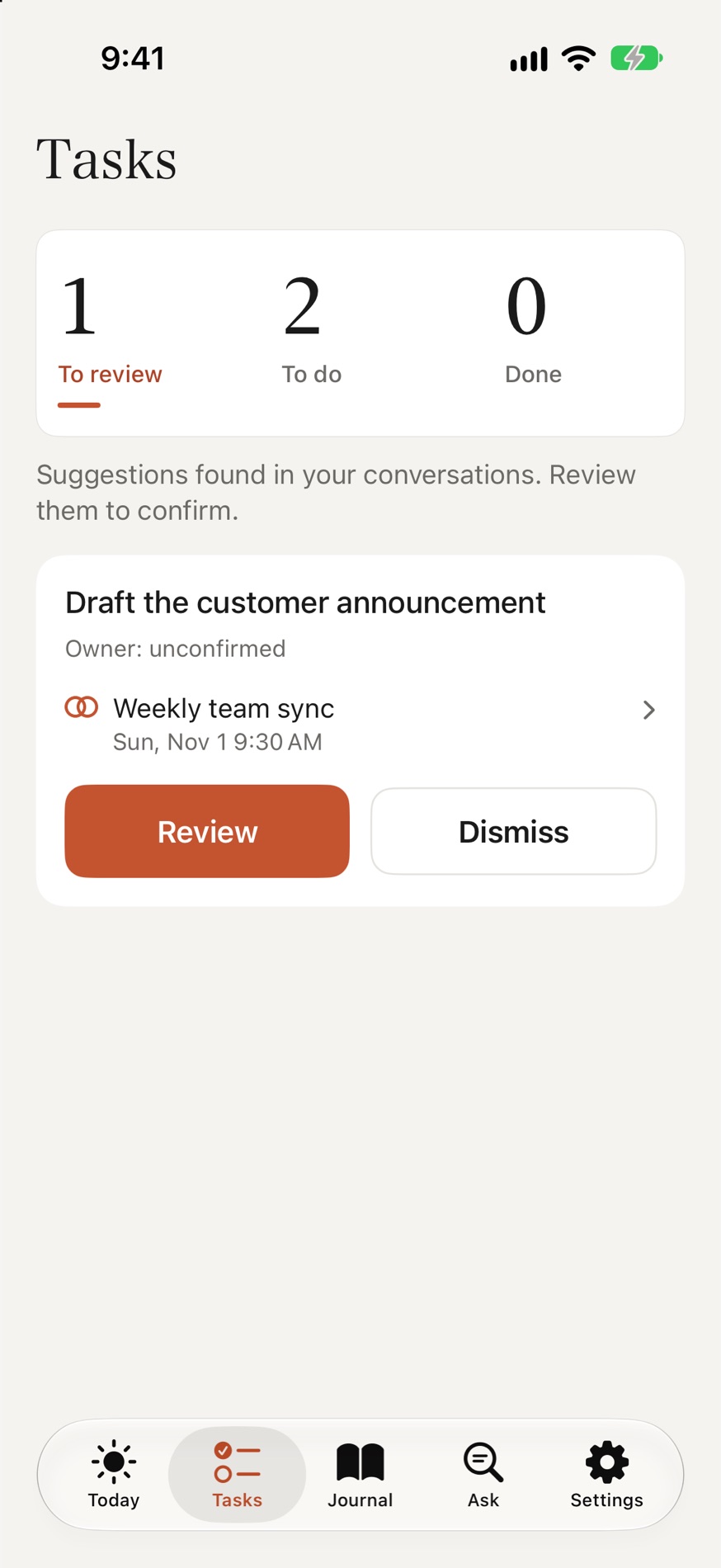
To-dos arrive as suggestions

To-dos mentioned in conversation are picked up and listed as suggestions. You confirm each one, so tasks never pile up behind your back.

  • Owners and due dates are added only when someone clearly said them
  • Every suggestion links back to the conversation it came from
The Tasks screen: a suggestion to draft the customer announcement, with Review and Dismiss buttons

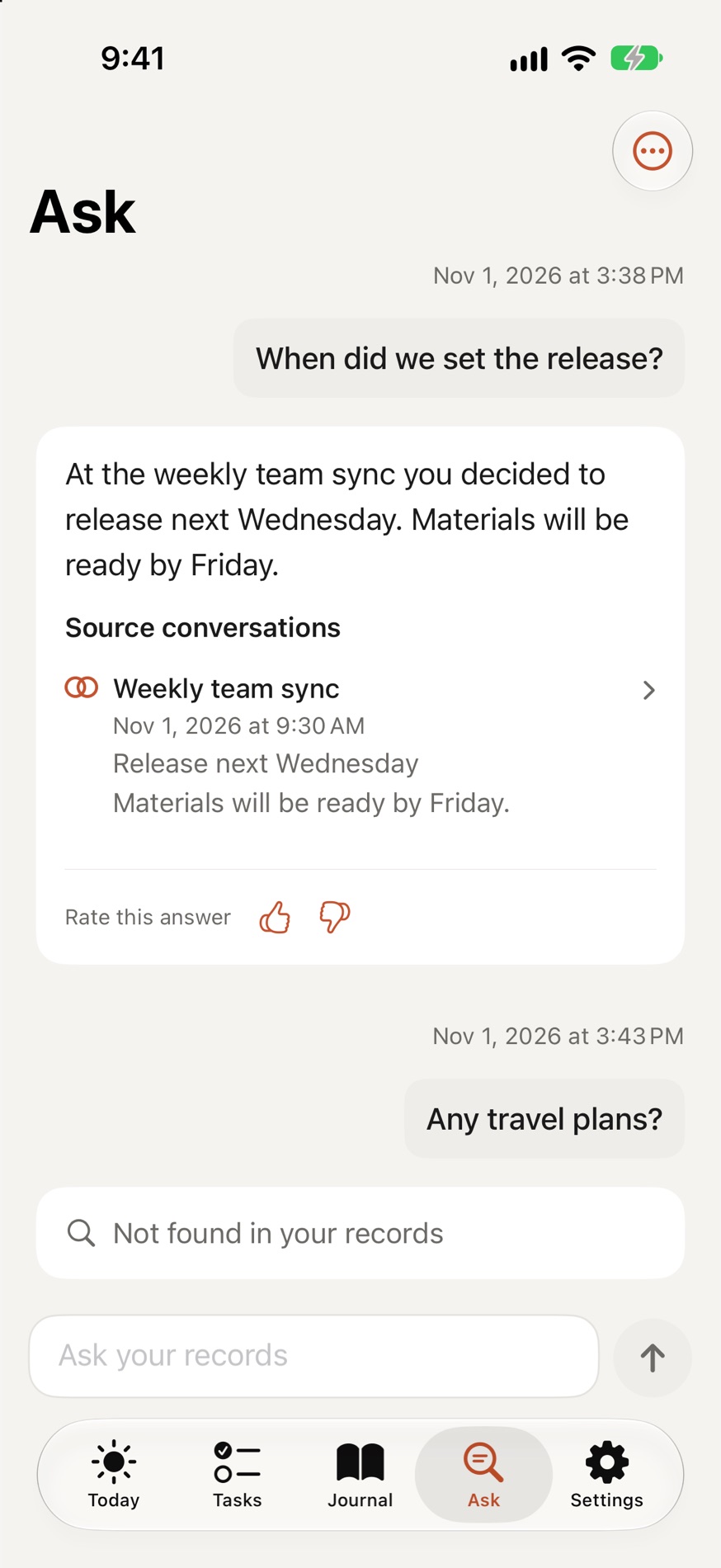
From a faint memory back to the original conversation

Ask a question about your records to get an answer with the relevant conversations as sources. If no supporting record is found, LifeKnot shows "Not found."

  • Up to 30 questions a day
  • Your question history stays on your iPhone
  • Or hand the records you choose to the AI app you already use, like ChatGPT or Claude — nothing passes through LifeKnot's servers
The Ask screen: an answer to 'When did we set the release?' with its source conversation

Read back and reflect

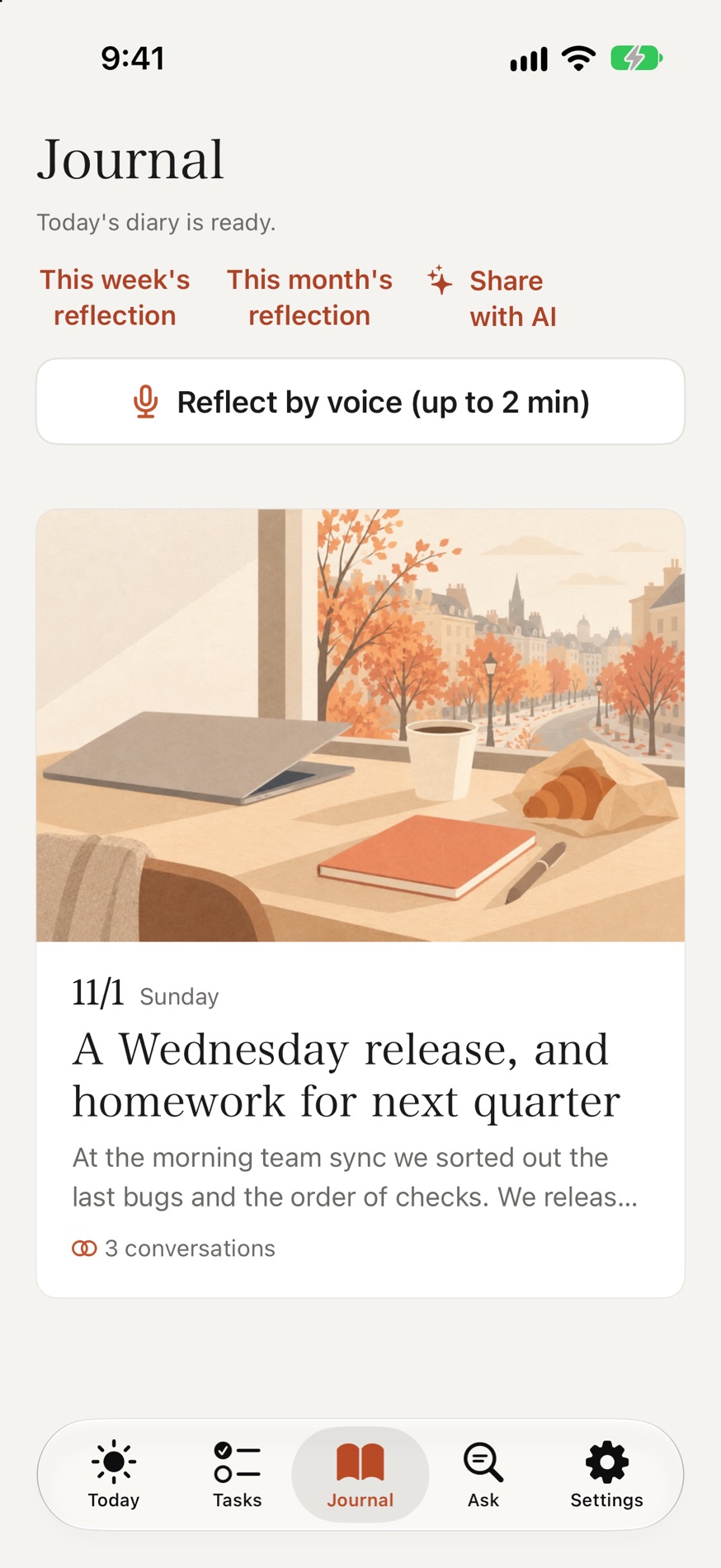
Journal collects one page per day. Journaling that keeps going without writing. Weekly and monthly reflections show how many conversations you had and for how long, what was decided, and who you talked with most.

  • A cover illustration drawn from that day's record. It's drawn from the journal lines written from your conversations, so a day full of meetings gets a meeting, and a day you talked about going out gets that scene. One per day, so every entry has its own cover
  • Reflect by voice (up to 2 minutes) and it's kept on that day's page
  • Export all your records to files at any time
The Journal screen: a cover illustration and the November 1 entry, 'A Wednesday release, and homework for next quarter'
Apple Watch

It records only while someone is talking.

The Apple Watch on your wrist records only when it hears voices. Audio goes to your iPhone, where it's turned into text.

Auto record · only while speaking Paused ★ Mark a moment

Only conversations with your voice

Enroll your voice and conversations you aren't part of — like the next table over — aren't transcribed. Your voice profile never leaves your iPhone.

Choose places not to record

Add places you'd rather not record, like a clinic or home, and recording pauses automatically while you're there.

Pause with Siri

Pause and resume recording hands-free with Siri.

Battery and storage

Apple Watch battery
3–4%per hour

A guide for Auto record left on all day. The microphone keeps listening so it doesn't miss the start of a conversation.

Audio size
About 11 MBper hour of talk

Recorded at 24 kbps, only while voices are present. Deleted from your iPhone 24 hours after transcription.

What stays
Text, summaries, journal+ 1 image a day

Only text records and one cover illustration per day remain. Audio isn't kept, so only text and images add up.

Figures are examples measured during development and vary with device, usage and how much you talk. Your iPhone uses battery to transcribe on-device.

Privacy

Your memories are yours.

What gets sent, and where, is shown the first time you open the app — nothing is sent until you agree. Recording and transcription work even if you don't.

Only conversations you're in

Register your voice, and only conversations with your voice in them are transcribed. Talk you're not part of, like the next table over, isn't turned into text, and its audio is deleted within 24 hours.

Audio deleted after 24 hours

Audio is deleted from your iPhone 24 hours after transcription. Recordings aren't kept around. What stays is your text record and journal.

Your records stay on your iPhone

Transcription happens on your iPhone with Apple's speech recognition, and audio is never sent. Your text records and journal are stored only on your iPhone, and LifeKnot's servers never keep the contents in a readable form (they are included in your iPhone backup).

"Only conversations you're in" works once you register your voice. The 24 hours for audio start after transcription. See the table below and the Privacy Policy for how AI processing and storage work.

Not used for training

Under OpenAI's API policy, content sent to the AI is not used for training. It may, however, be retained by OpenAI for up to 30 days for abuse monitoring.

Delete any conversation

Deleting a conversation removes its audio, text, summary, suggested to-dos and the questions based on it from your iPhone. Backups already made keep it until you delete them. You can also delete your account from within the app.

PurposeSent toWhat's sent
TranscriptionNot sent (on your iPhone)—
Conversation summariesOpenAITranscript text, times, speaker names you added, marks for your own speech
JournalOpenAIConversation summaries, selected lines, your notes, wellbeing notes, reflections, names of places you named
Journal cover illustrationOpenAIJournal sentences written from conversations, and the month
Answers to questionsOpenAIYour question, and related lines and summaries chosen on your iPhone
Not sent to AI—Audio, your voice profile, coordinates or addresses, Health data, photos, calendar, weather

Steps, sleep and exercise are only shown on the journal page and never sent to AI. Approximate location is passed to Apple only to show the weather and to look up addresses. See the Privacy Policy for details.

Pricing

One plan. No limit on recording time.

lifeknot. ¥1,800/ month Available in Japan. Tax included · auto-renewing · paid through the App Store. Available soon
Recording and transcription
No time limit (transcribed on your iPhone)
Conversation summaries
Unlimited
Journal and cover illustration
1 entry and 1 image per day (never regenerated)
Questions to your records
Up to 30 per day
Free trial or free plan
None

After your subscription ends, you can still read, search, export and delete your records. Renews automatically unless canceled at least 24 hours before the end of the period. Cancel in iPhone Settings › Subscriptions. See the Terms of Use.

FAQ

Good to know before you start

Is it recording all day?

Auto record captures only while it hears voices. You can pause any time, and it stops automatically at places you've chosen not to record.

Which iPhones are supported?

An iPhone on iOS 26 or later that supports Apple's on-device transcription. Unsupported iPhones can't use the app.

Do I need to buy a separate recorder?

No. Recording, transcription and the journal all run on the Apple Watch and iPhone you already use. Apple Watch needs watchOS 11 or later.

Do I need an Apple Watch?

You can also record on your iPhone or import audio files. With an Apple Watch, you can capture your day without stopping what you're doing.

What about other people's voices?

On a conversation's screen, you can mark any speaker as a background voice. Their words are then left out of summaries, the journal and answers. If you enroll your voice, conversations you aren't part of aren't transcribed.

What if the journal gets something wrong?

AI-written text can contain mistakes or mix-ups. For lines based on conversations, tap the mark to check the original.

I've never kept up a journal. Will this work for me?

Yes. LifeKnot is an AI journal app that writes the day's entry from your conversations, without you setting time aside to write. Reading back each night's entry is an easy way to start journaling.

How do I delete my data?

Delete any conversation, and its audio, text, summary and the question history based on it go too. You can also delete your account from within the app.

How much Apple Watch battery does it use?

About 3–4% per hour with Auto record on all day (an example measured during development). The microphone keeps listening between voices so it doesn't miss the start of a conversation. If that matters, pause it or set places not to record.

Will it fill up my iPhone?

Audio takes about 11 MB per hour of talk and is deleted 24 hours after transcription. What remains is text and one cover illustration per day.

Which languages are supported?

English and Japanese to start. You can set a main language plus any other languages you speak.

Today's conversations,
for tomorrow's you.